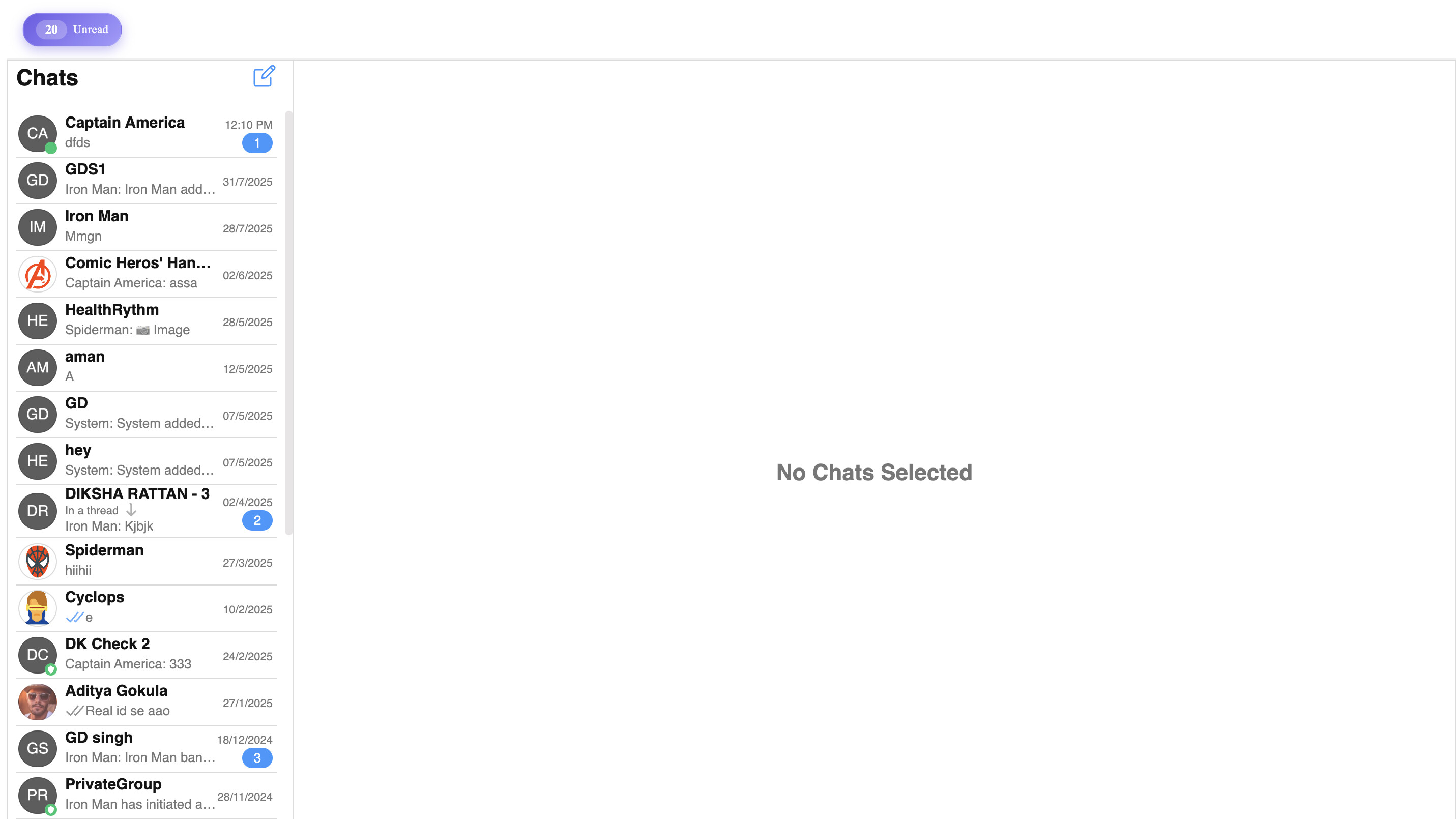
Guide Overview:
This guide offers a step-by-step walkthrough on how to display a global unread message count in your chat application built using CometChat Angular UI Kit v4. This allows you to show the total number of unread messages across all conversations
To achieve this, we’ll utilize the cometchat-conversations-with-messages component from the CometChat UI Kit, along with CometChat SDK methods to track unread counts in real-time.
Before tracking unread messages, make sure the <cometchat-conversations-with-messages> component is properly initialized in your application.
Step 1: Use SDK Method to Fetch Unread Counts
To retrieve the global unread message count, use the CometChat.getUnreadMessageCount() method provided by the CometChat JavaScript SDK.
Import the CometChat SDK
Ensure you import CometChat from the SDK at the top of your component.
import { CometChat } from '@cometchat/chat-sdk-javascript';
Before fetching unread counts or handling message events, define the necessary component-level state variables to manage the user session and unread data.
Add the following properties inside your Angular component class:
totalUnreadCount: number = 0;
user: CometChat.User | null = null;
group: CometChat.Group | null = null;
Step 2: Create a Method to Fetch Total Unread Count
Next, define a method that fetches and calculates the total unread messages from both users and groups using the CometChat SDK.
Add the following method inside your Angular component:
async fetchTotalUnreadCount(): Promise<void> {
try {
type UnreadCountResult = {
users: { [uid: string]: number };
groups: { [guid: string]: number };
};
const count = await CometChat.getUnreadMessageCount() as UnreadCountResult;
const userCount = Object.values(count.users).reduce(
  (sum, count) => sum + count,
  0
);
const groupCount = Object.values(count.groups).reduce(
  (sum, count) => sum + count,
  0
);
this.totalUnreadCount = userCount + groupCount;
console.log("Total Unread Count:", this.totalUnreadCount);

} catch (error) {
console.error("Error fetching unread count:", error);
}
}
Step 3: Initialize Unread Count and Set Up Real-Time Listener
To ensure the global unread count is accurate and stays updated in real-time, we’ll:
- Fetch the unread count once when the component initializes.
- Add a CometChat message listener to increment the count as new messages arrive.
- Clean up the listener on component destruction to avoid memory leaks.
Add the following to your component:
listenerID = 'UNREAD_COUNT_LISTENER';

async ngOnInit(): Promise<void> {
  // Initial fetch of unread count
  await this.fetchTotalUnreadCount();

  // Add real-time message listener
  CometChat.addMessageListener(
    this.listenerID,
    new CometChat.MessageListener({
      onTextMessageReceived: (textMessage: CometChat.TextMessage) => {
        this.totalUnreadCount += 1;
      },
      onMediaMessageReceived: (mediaMessage: CometChat.MediaMessage) => {
        this.totalUnreadCount += 1;
      },
      onCustomMessageReceived: (customMessage: CometChat.CustomMessage) => {
        if (customMessage.getType() === 'location') {
          this.totalUnreadCount += 1;
        }
      }
    })
  );
}

ngOnDestroy(): void {
  // Remove listener to prevent memory leaks
  CometChat.removeMessageListener(this.listenerID);
}
Step 4: Reduce Unread Count on Conversation Click
To ensure the global unread count is updated accurately when a user clicks on a conversation (and reads messages), you can use the ConversationsConfiguration provided by CometChat UI Kit.
This configuration allows you to hook into the conversation selection event and update the count accordingly.
Import the Configuration Class
At the top of your component, import the following:
import { ConversationsConfiguration } from '@cometchat/uikit-shared';
Define the Conversation Configuration
Add the following to your component class:
conversationConfiguration = new ConversationsConfiguration({
  onItemClick: async (conversation) => {
    // Get the conversation target and type
    const conv = await conversation.getConversationWith();
    const convType = await conversation.getConversationType();

    // Store active user or group based on type
    if (convType === 'user') {
      this.user = conv as CometChat.User;
    } else if (convType === 'group') {
      this.group = conv as CometChat.Group;
    }
    // Subtract from global unread count
    if (conversation.getUnreadMessageCount() > 0) {
      this.totalUnreadCount =
        this.totalUnreadCount - conversation.getUnreadMessageCount();
    }
  },
});
Step 5: Pass Configuration and State into Template
Now that we’ve set up the conversationConfiguration, and are maintaining the active user and group states, you can bind these directly into the <cometchat-conversations-with-messages> component.
Template Integration
Update your Angular template as follows:
<div>
 <div class="unread-count-container">
        <div class="unread-count-badge"
             *ngIf="totalUnreadCount > 0"
             [class.has-unread]="totalUnreadCount > 0">
            <span class="unread-count-text">{{ totalUnreadCount }}</span>
            <span class="unread-count-label">Unread</span>
        </div>
    </div>
<cometchat-conversations-with-messages
  [conversationConfiguration]="conversationConfigration"
  [user]="user"
  [group]="group">
</cometchat-conversations-with-messages>
</div>
Update the scss folllows:
.unread-count-container {
    padding: 12px 16px;
    background-color: #ffffff;
    border-bottom: 1px solid #f0f0f0;
    display: flex;
    justify-content: flex-start;
    align-items: center;
}

.unread-count-badge {
    display: inline-flex;
    align-items: center;
    gap: 6px;
    background: linear-gradient(135deg, #6c5ce7 0%, #a29bfe 100%);
    color: white;
    padding: 6px 12px;
    border-radius: 16px;
    font-size: 13px;
    font-weight: 500;
    box-shadow: 0 2px 6px rgba(108, 92, 231, 0.3);
    border: 1px solid rgba(255, 255, 255, 0.1);
    backdrop-filter: blur(10px);
    transition: all 0.3s ease;
    animation: slideIn 0.4s ease-out;

    &:hover {
        transform: translateY(-1px);
        box-shadow: 0 4px 12px rgba(108, 92, 231, 0.4);
    }

    // Add pulse animation only when count > 0
    &.has-unread {
        animation: pulse 3s infinite;
    }
}

.unread-count-text {
    background-color: rgba(255, 255, 255, 0.25);
    padding: 2px 6px;
    border-radius: 10px;
    font-weight: 600;
    font-size: 12px;
    min-width: 18px;
    text-align: center;
    line-height: 1.2;
}

.unread-count-label {
    font-size: 11px;
    font-weight: 400;
    letter-spacing: 0.3px;
    opacity: 0.95;
}
Once you have implemented the above steps, you will have successfully enabled the global unread count functionality within your Angular UI Kit v4 integration.