This guide walks you through implementing push notifications in a web application using CometChat’s HTML Widget Builder and Firebase Cloud Messaging (FCM). Push notifications allow your users to receive real-time alerts even when they’re not actively using your application.
CometChat Widget Setup in HTML
Before implementing push notifications, you need to integrate the CometChat widget into your HTML application. This widget provides the chat interface and core messaging functionality.
Follow CometChat’s official integration documentation at: https://www.cometchat.com/docs/widget/html/integration
This documentation will guide you through:
- Creating a CometChat account
- Obtaining your App ID, Region, and Auth Key
- Adding the necessary script tags to your HTML
- Initializing the CometChat SDK
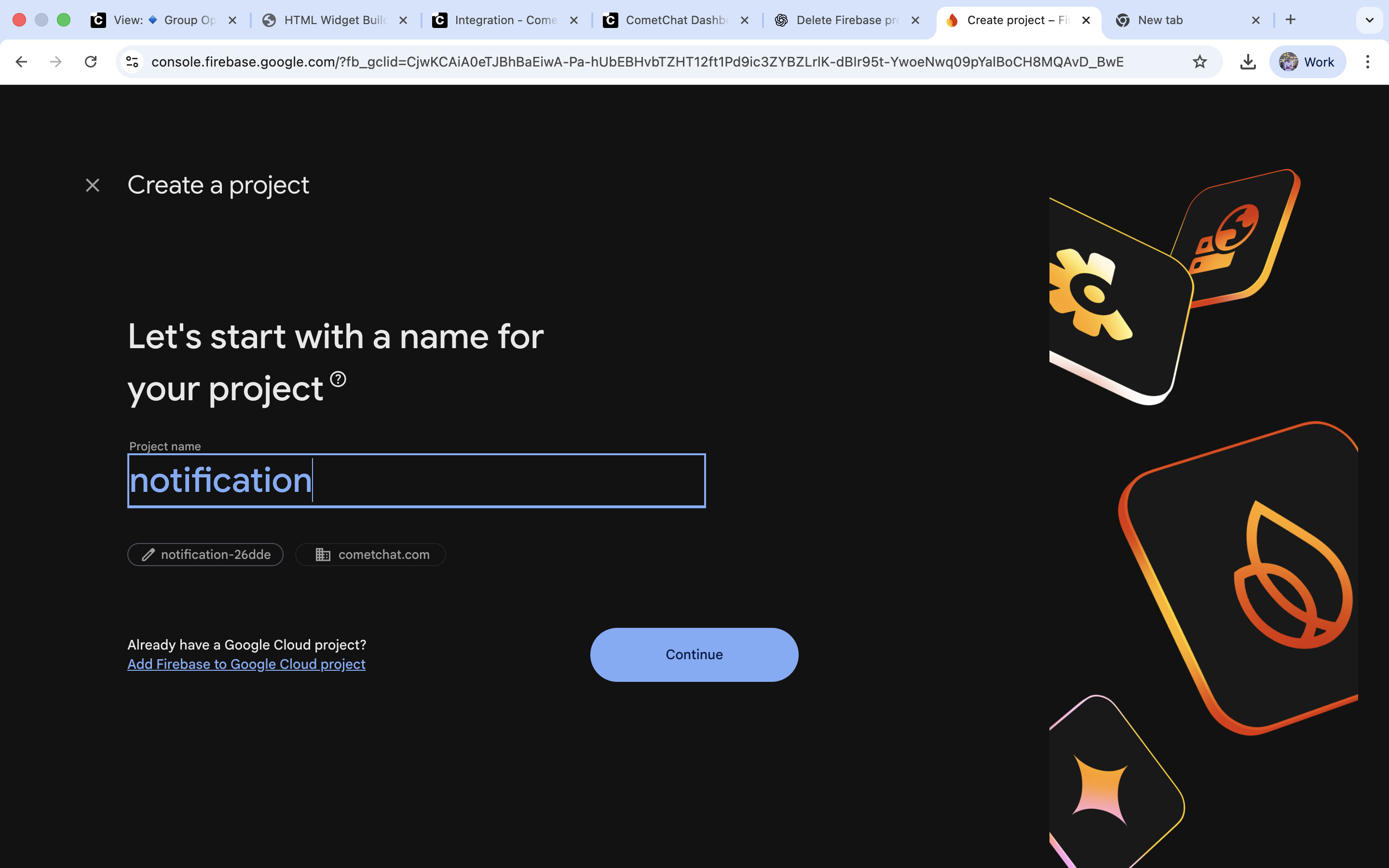
Create Firebase Project
Firebase Cloud Messaging (FCM) is Google’s service for sending push notifications to web, Android, and iOS applications. You need a Firebase project to generate the credentials that allow CometChat to send notifications through FCM.
Navigate to Project Settings
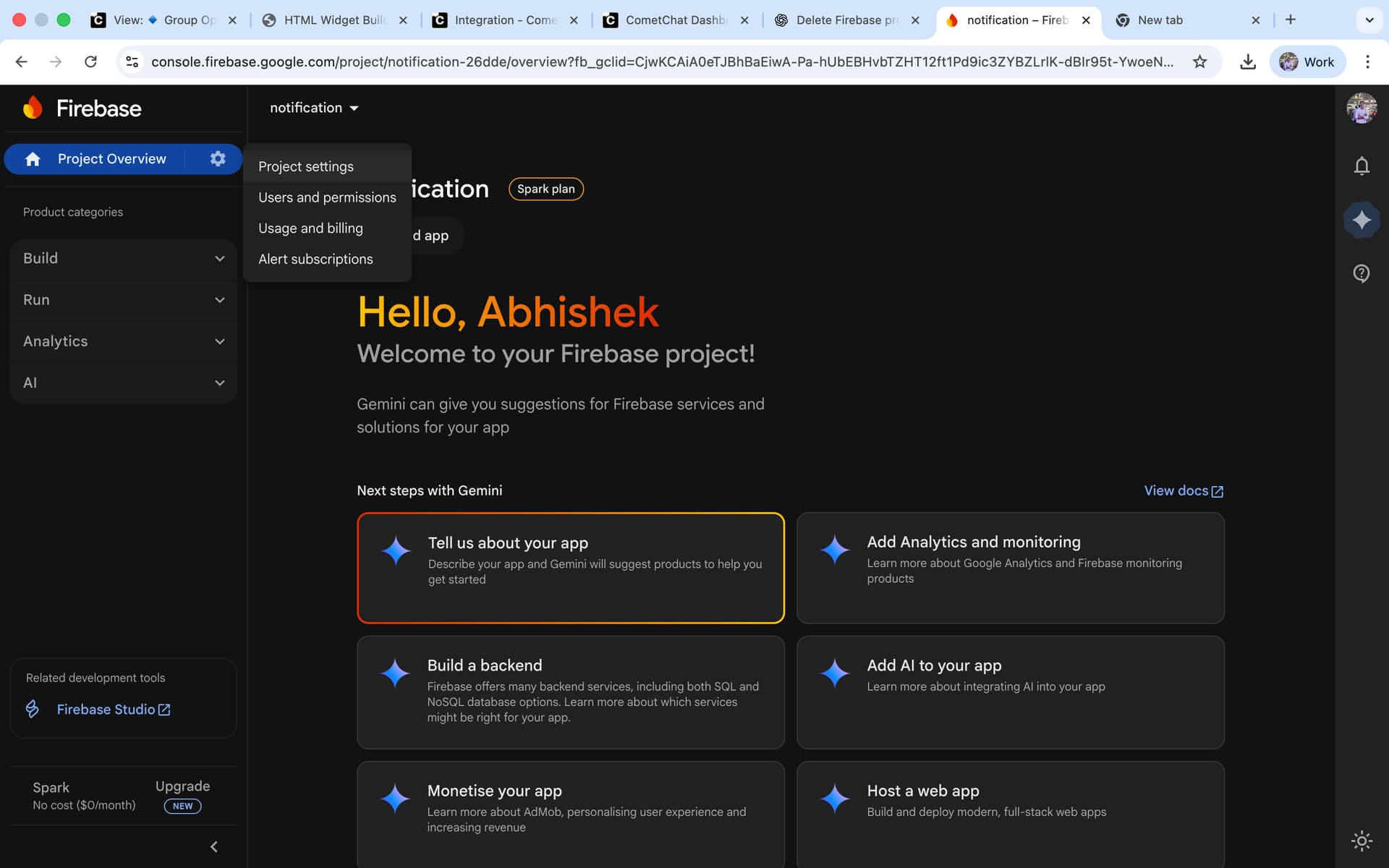
Once your Firebase project is created, you need to access its settings to obtain credentials and configure service accounts.
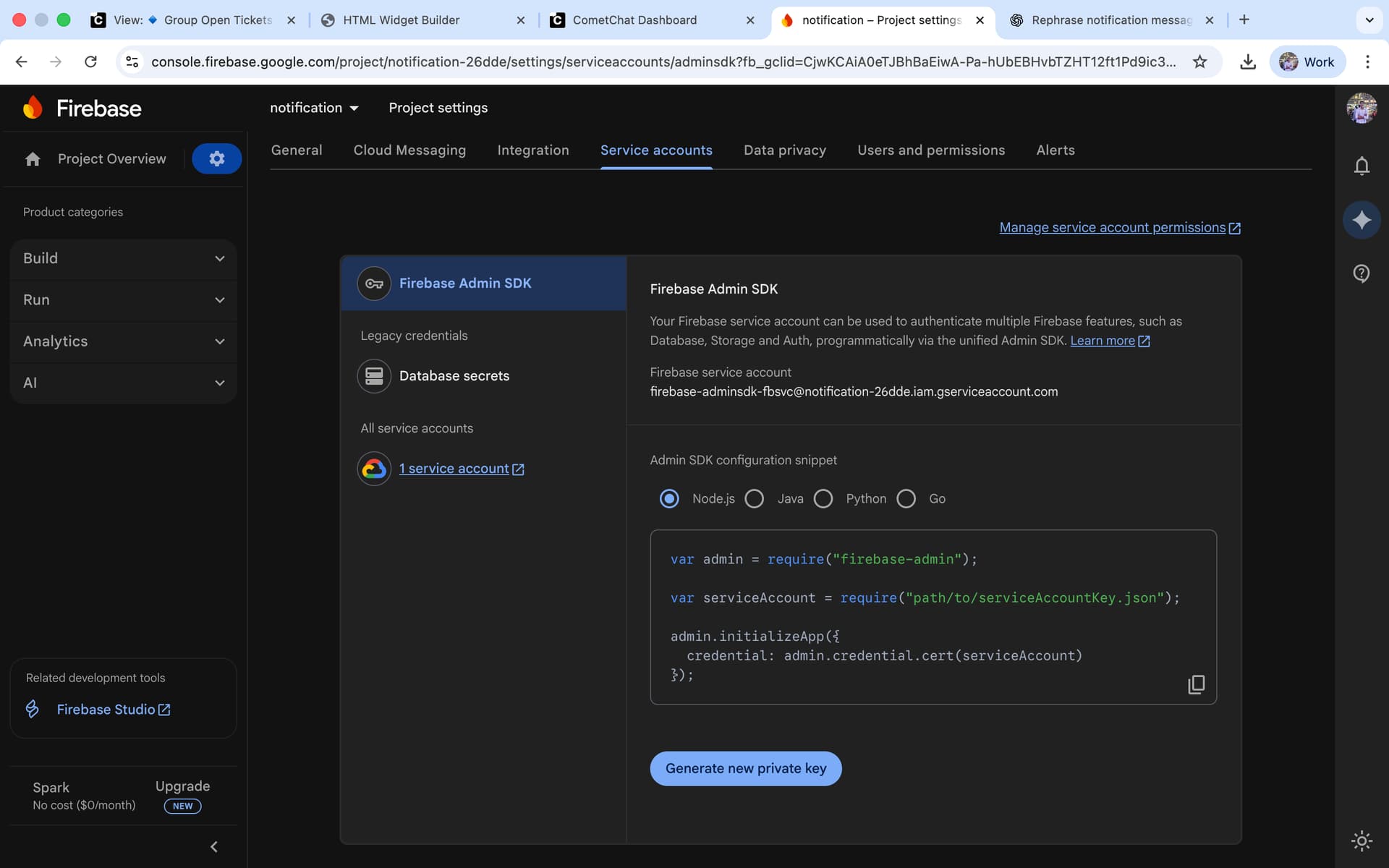
Generate Firebase Service Account Key
A service account key is a JSON file containing private credentials that allow CometChat’s servers to authenticate with Firebase and send push notifications on your behalf. You can get JSON file by clicking on Generate new private key button, after clicking it a JSON file will automatically download.
Enable Push Notifications in CometChat Dashboard
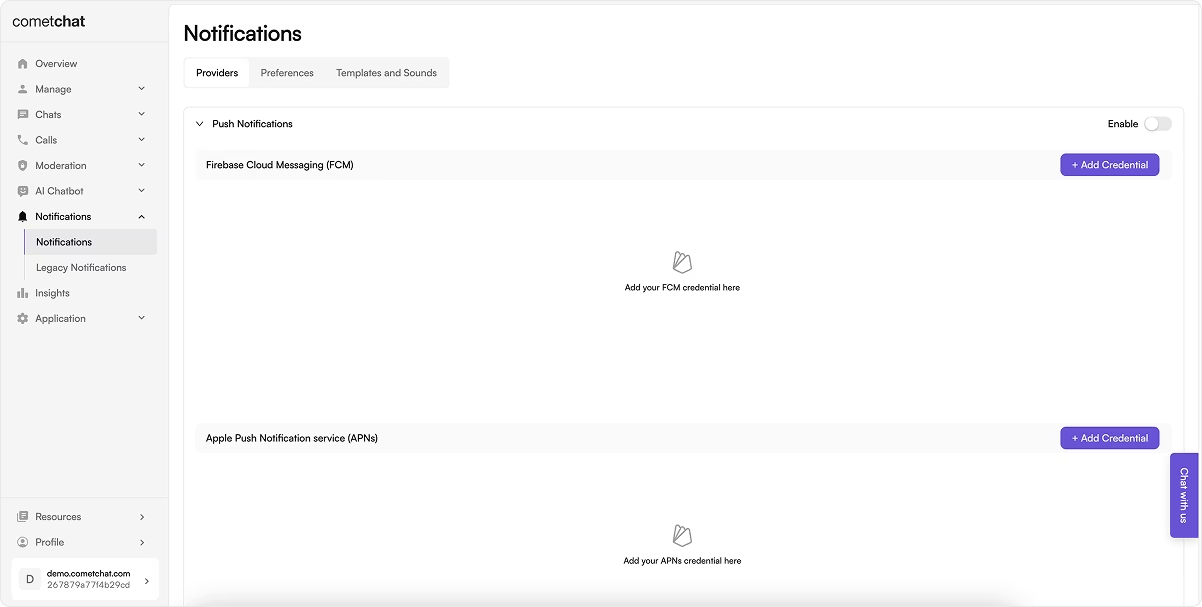
Activating the push notification feature within your CometChat application settings, it allows the platform to send notifications through various browser.
Configure Firebase Credentials in CometChat
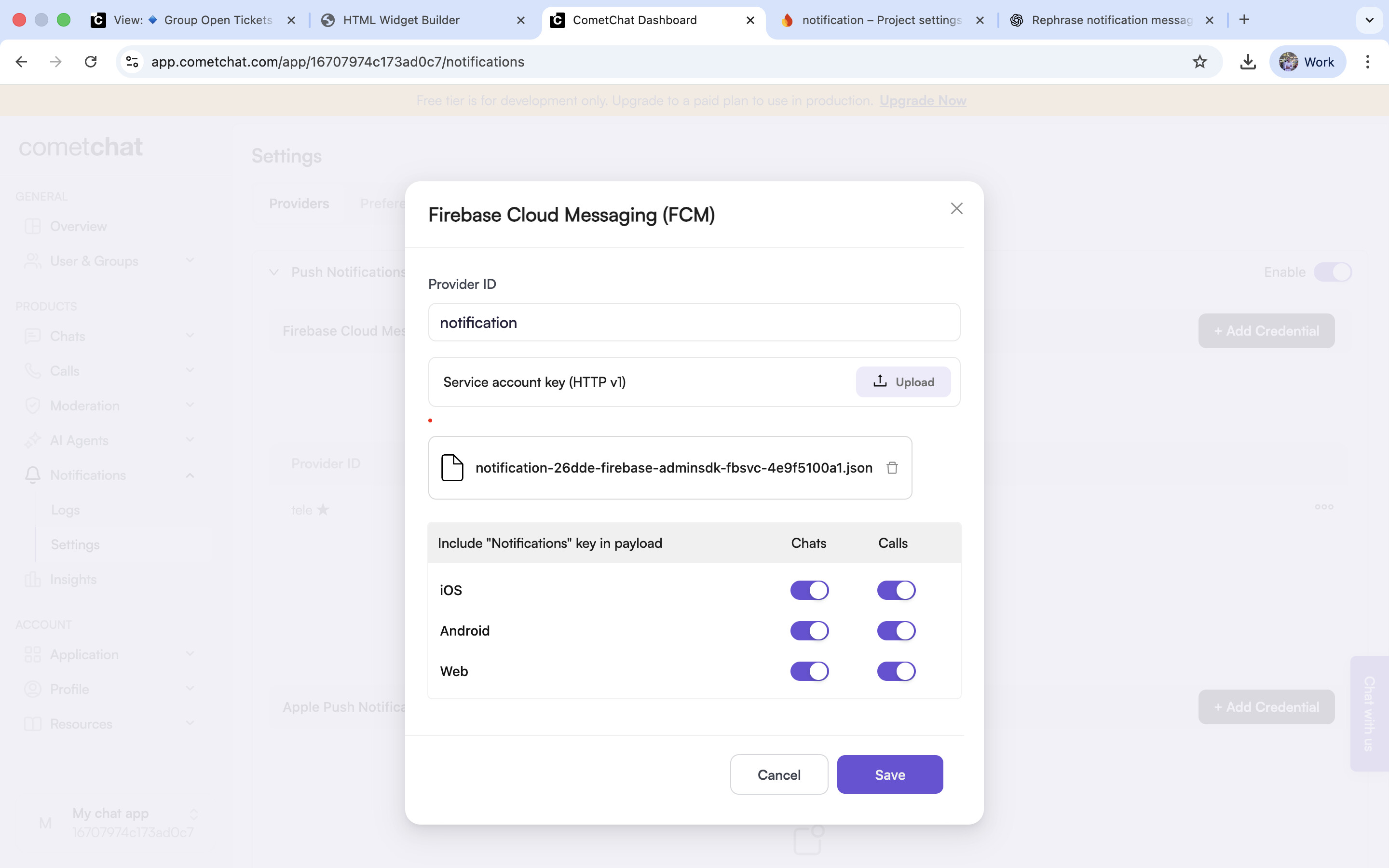
This step uploads your Firebase service account credentials to CometChat, establishing the connection between CometChat and Firebase for push notification delivery. In Provider Id enter firebase project name you created and upload JSON file.
Create the service worker file
Create a new file named:
firebase-messaging-sw.js
Add the following code snippet within a file:
// Import Firebase Scripts
importScripts("https://www.gstatic.com/firebasejs/7.21.0/firebase-app.js");
importScripts("https://www.gstatic.com/firebasejs/7.21.0/firebase-messaging.js");

// Firebase Configuration (Use your own credentials here)
const firebaseConfig = {
  apiKey: "YOUR_API_KEY",
  authDomain: "YOUR_AUTH_DOMAIN",
  projectId: "YOUR_PROJECT_ID",
  storageBucket: "YOUR_STORAGE_BUCKET",
  messagingSenderId: "YOUR_MESSAGING_SENDER_ID",
  appId: "YOUR_APP_ID",
  measurementId: "YOUR_MEASUREMENT_ID"
};

// Initialize Firebase in the Service Worker
firebase.initializeApp(firebaseConfig);

// Enable background push notifications
const messaging = firebase.messaging();
Place this file in the public root of your project (for example: /public/firebase-messaging-sw.js), because service workers must reside at the root level.
Add required script includes
Place these in the <head> of your HTML so the script tags load the necessary JavaScript libraries into your HTML page: the CometChat widget and Firebase’s messaging capabilities.
<script src="https://cdn.jsdelivr.net/npm/@cometchat/chat-embed@latest/dist/main.js"></script>

<script src="https://www.gstatic.com/firebasejs/9.23.0/firebase-app-compat.js"></script>

<script src="https://www.gstatic.com/firebasejs/9.23.0/firebase-messaging-compat.js"></script>
Prepare the DOM and UI
This creates the visual elements users will interact with, a logout button and a container where the CometChat widget will appear.
<button onclick="handleLogout()">Logout</button>

<div id="cometChatMount"></div>
Cometchat Credentials and Launch Options
const COMETCHAT_CREDENTIALS = {
        appID: "YOUR_APP_ID",
        appRegion: "YOUR_APP_REGION",
        authKey: "YOUR_AUTH_KEY",
      };

      const COMETCHAT_LAUNCH_OPTIONS = {
        targetElementID: "cometChatMount",
        width: "100%",
        height: "700px",
        variantId: "YOUR_VARIANT_ID",
      };
Initialize Firebase on DOMContentLoaded
This ensures Firebase is properly configured before any other code tries to use it. The DOMContentLoaded event fires when the HTML document is fully loaded and parsed.
window.addEventListener('DOMContentLoaded', () => {

const firebaseConfig = { /* your firebase credentials */ };

firebase.initializeApp(firebaseConfig);

messaging = firebase.messaging();

loadCometChatWidget('cometchat-uid-1');

});
Initialize CometChat and Login
This code initializes the CometChat SDK, logs in a user, requests permission for notifications, obtains a Firebase token, registers that token with CometChat, and finally launches the chat widget.
CometChatApp.init(COMETCHAT_CREDENTIALS)
  .then(() => CometChatApp.logout().catch(() => {}))
  .then(() => CometChatApp.login({ uid: "cometchat-uid-1" }))
  .then(() => {
    messaging.getToken().then((currentToken) => {
      if (currentToken) {
        CometChatApp.CometChatNotifications.registerPushToken(
          currentToken,
          CometChatApp.CometChatNotifications.PushPlatforms.FCM_WEB,
          "tele"
        )
          .then(() => {
            console.log("Push token registered successfully");
          })
          .catch((error) => {
            console.log("Error registering push token:", error);
          });
      }
    });
  })
  .then(() => CometChatApp.launch(COMETCHAT_LAUNCH_OPTIONS))
  .catch((error) => console.error("[CometChat] Widget Error:", error));
Logout and cleanup
When a user logs out, this function properly cleans up notification tokens to prevent notifications from being sent to a logged-out user. It also ensures proper session cleanup.
const messaging = firebase.messaging();

await messaging.deleteToken();

await CometChatApp.CometChatNotifications.unregisterPushToken();

await CometChatApp.logout();

}
Here are the steps to implement the HTML Widget Builder, with the complete reference code provided below:
HTML File Final Code
Paste the following code in index.html
<!DOCTYPE html>
<html>
  <head>
    <meta charset="utf-8" />
    <title>HTML Widget Builder</title>
    <script src="https://cdn.jsdelivr.net/npm/@cometchat/chat-embed@latest/dist/main.js"></script>
    <script src="https://www.gstatic.com/firebasejs/9.23.0/firebase-app-compat.js"></script>
    <script src="https://www.gstatic.com/firebasejs/9.23.0/firebase-messaging-compat.js"></script>
  </head>
  <body>
    <button
      style="height: 30px; width: 100px; position: fixed; right: 20px"
      onclick="handleLogout()"
    >
      Logout
    </button>

    <div id="cometChatMount"></div>

    <script>
      async function handleLogout() {
        // to ensure that the `pushToken` registered with the user is deleted during logout
        const messaging = firebase.messaging();
        await messaging.deleteToken();
        await CometChatApp.CometChatNotifications.unregisterPushToken();
        await CometChatApp.logout().then(async () => {
          console.log("Logout successful");
        });
      }

      function loadCometChatWidget(uid) {
        if (typeof CometChatApp === "undefined") {
          console.log("[CometChat] SDK not ready yet, retrying...");
          return setTimeout(() => loadCometChatWidget(uid), 500);
        }
      }

      const COMETCHAT_CREDENTIALS = {
        appID: "YOUR_APP_ID",
        appRegion: "YOUR_APP_REGION",
        authKey: "YOUR_AUTH_KEY",
      };

      const COMETCHAT_LAUNCH_OPTIONS = {
        targetElementID: "cometChatMount",
        width: "100%",
        height: "700px",
        variantId: "YOUR_VARIANT_ID",
      };

      // Always reset cache for clean start
      sessionStorage.clear();
      localStorage.clear();

      CometChatApp.init(COMETCHAT_CREDENTIALS)
        .then(() => CometChatApp.logout().catch(() => {}))
        .then(() => CometChatApp.login({ uid: "cometchat-uid-1" }))
        .then(() => {
          messaging.getToken().then((currentToken) => {
            if (currentToken) {
              console.log("Firebase Token:", currentToken);
              CometChatApp.CometChatNotifications.registerPushToken(
                currentToken,
                CometChatApp.CometChatNotifications.PushPlatforms.FCM_WEB,
                "tele"
              )
                .then(() => {
                  console.log("Push token registered successfully");
                })
                .catch((error) => {
                  console.log("Error registering push token:", error);
                });
            }
          });
        })
        .then(() => CometChatApp.launch(COMETCHAT_LAUNCH_OPTIONS))
        .catch((error) => console.error("[CometChat] Widget 1 Error:", error));

      // Auto-load widget for user 'cometchat-uid-1' on page load
      window.addEventListener("DOMContentLoaded", function () {
        const firebaseConfig = {
          apiKey: "",
          authDomain: "",
          projectId: "",
          storageBucket: "",
          messagingSenderId: "",
          appId: "",
          measurementId: "",
        };

        firebase.initializeApp(firebaseConfig);
        messaging = firebase.messaging();

        loadCometChatWidget("cometchat-uid-1");
      });
    </script>
  </body>
</html>
Once this is completed, you can test the notifications in the browser, and you should be able to receive them successfully.