Guide Overview:
This guide provides a step-by-step walkthrough for implementing the Pinned Messages feature in a React app using CometChat UIKit v6.
Get started, you first need to enable the Pin Message extension in your CometChat app:
- Login to your CometChat Dashboard.
- Select the app where you want to implement this feature.
- In the left-hand navigation menu, go to the “Extensions” section.
- Find the “Pin Message” in extensions under the features section and enable it.
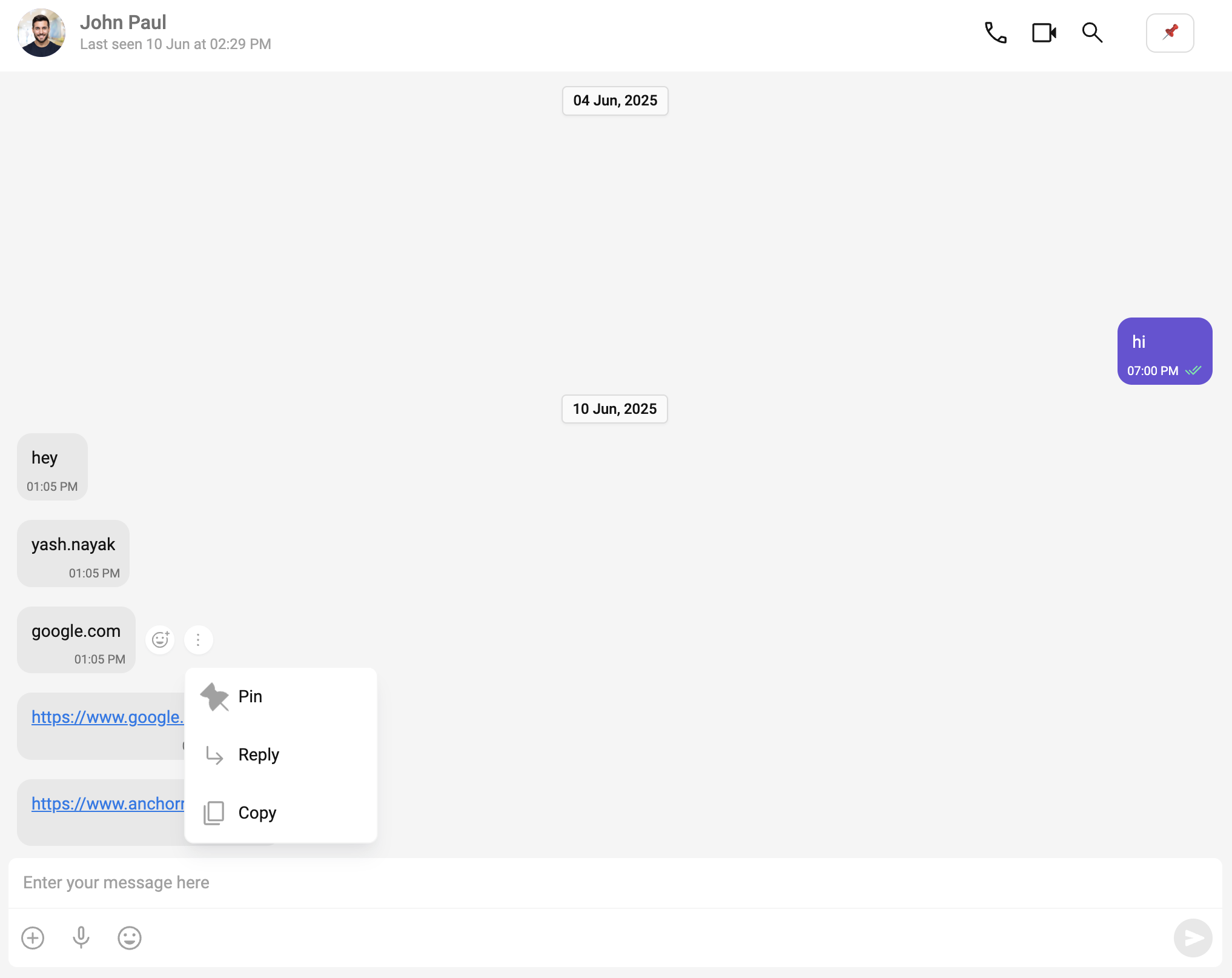
To implement the Pin Message feature in your chat UI, you need to override the message option templates provided by CometChat. This will allow you to inject your own custom action (like “Pin” or “Unpin”) into the message options menu (⋮) that appears on each message.
Here’s a step-by-step breakdown:
1. Create a Templates State
Start by creating a state variable to store the customized message templates:
const [templates, setTemplates] = useState<CometChatMessageTemplate[]>([]);
2. Load and Update CometChat Templates
Use the useEffect hook to fetch the default message templates from CometChat and override the options for specific message types:
useEffect(() => {
  const definedTemplates = CometChatUIKit.getDataSource().getAllMessageTemplates();

  const updatedTemplates = definedTemplates.map((template) => {
    if (
      template.type === CometChatUIKitConstants.MessageTypes.text &&
      template.category === CometChatUIKitConstants.MessageCategory.message
    ) {
      template.options = getCustomOptions;
    }
    return template;
  });

  setTemplates(updatedTemplates);
}, []);
This ensures only text messages under the message category will include your custom pin/unpin option.
To activate the customized Pin/Unpin message option, you need to pass the updated message templates into the CometChatMessageList component. This ensures that your overridden options (like the pin action) appear in the message action menu.
<CometChatMessageList. templates={templates} />
3. Define getCustomOptions to Add Pin/Unpin Logic
Create a memoized getCustomOptions function using useCallback. This function modifies the default message options and adds your custom pin/unpin action:
const getCustomOptions = useCallback((
  loggedInUser: CometChat.User,
  message: CometChat.BaseMessage,
  group?: CometChat.Group
) => {
  const defaultOptions = CometChatUIKit.getDataSource().getMessageOptions(
    loggedInUser,
    message,
    group
  );

  const isPinned = pinnedMessages?.some((pinmsg: any) => pinmsg.id === message.getId());
  const receiverInfo = getReceiverInfo();

  if (!receiverInfo) return defaultOptions;

  const { receiverType, receiver } = receiverInfo;

  const pinUnpinOption = new CometChatActionsIcon({
    id: isPinned ? "unpin" : "pin",
    title: isPinned ? "Unpin" : "Pin",
    iconURL: "",
    onClick: async () => {
      try {
        if (isPinned) {
          await CometChat.callExtension("pin-message", "DELETE", "v1/unpin", {
            msgId: message.getId(),
            receiverType,
            receiver
          });
        } else {

          await CometChat.callExtension("pin-message", "POST", "v1/pin", {
            msgId: message.getId(),
            receiverType,
            receiver
          });
        }
        await fetchPinnedMessages();
      } catch (error) {
        console.error("Error in pin/unpin operation", error);
      }
    }
  });

  defaultOptions.splice(1, 0, pinUnpinOption);
  return defaultOptions;
}, [pinnedMessages, getReceiverInfo, fetchPinnedMessages]);
4. Create getReceiverInfo Utility
This function determines the target recipient info whether it’s a user or a group based on current chat context:
const getReceiverInfo = useCallback(() => {
  let receiverType: string;
  let receiver: string;

  if (user) {
    receiverType = "user";
    receiver = user.getUid();
  } else if (group) {
    receiverType = "group";
    receiver = group.getGuid();
  } else {
    return null;
  }

  return { receiverType, receiver };
}, [user, group]);
5. Maintain Pinned Messages State
Lastly, create a state variable to store the pinned messages fetched from the backend:
const [pinnedMessages, setPinnedMessages] = useState<any[]>([]);
6. Fetch Pinned Messages from CometChat Extension
To ensure your application always displays the most up-to-date list of pinned messages, you’ll need to fetch them from the CometChat Pin Message Extension and store them in your component’s state
Below is the fetchPinnedMessages function, which calls the extension’s API to retrieve all pinned messages for the current user or group.
const fetchPinnedMessages = useCallback(async () => {
    const receiverInfo = getReceiverInfo();
    if (!receiverInfo) return;

    const { receiverType, receiver } = receiverInfo;
    const URL = `v1/fetch?receiverType=${receiverType}&receiver=${receiver}`;

    try {
        const response: any = await CometChat.callExtension('pin-message', 'GET', URL);
        if (response?.pinnedMessages) {
            setPinnedMessages(response.pinnedMessages); // Update the state with pinned messages
        }
    } catch (error) {
        console.error("Error fetching pinned messages", error);
    }
}, [getReceiverInfo]);
7. Automatically Fetch Pinned Messages on Load
To make sure the pinned messages are available when the chat screen first loads, you should trigger the fetchPinnedMessages function inside a useEffect hook. This ensures that your app initializes with the latest set of pinned messages for the selected user or group.
useEffect(() => {
    fetchPinnedMessages();
}, [fetchPinnedMessages]);
8. Display a Button to View Pinned Messages in the Header
To let users view all pinned messages, you can add a custom  button to the message header. When clicked, it will toggle a dedicated pinned message view.
- Create state to toggle pinned message view
const [showPinnedView, setShowPinnedView] = useState<boolean>(false);
- Create the Pinned Message Header Button
const pinMessageHeader = () => (
  <div className="pinned-messages-indicator">
    <buttonclassName="view-pinned-btn"
      onClick={() => setShowPinnedView(true)}
    >
      📌
    </button>
  </div>
);
You can style .view-pinned-btn as per your app theme or CometChat’s look and feel.
- Pass this view to the Message Header
Now inject this icon into the CometChatMessageHeader via the auxiliaryButtonView prop:
<CometChatMessageHeader auxiliaryButtonView={pinMessageHeader()} />
9. Render the Pinned Messages View
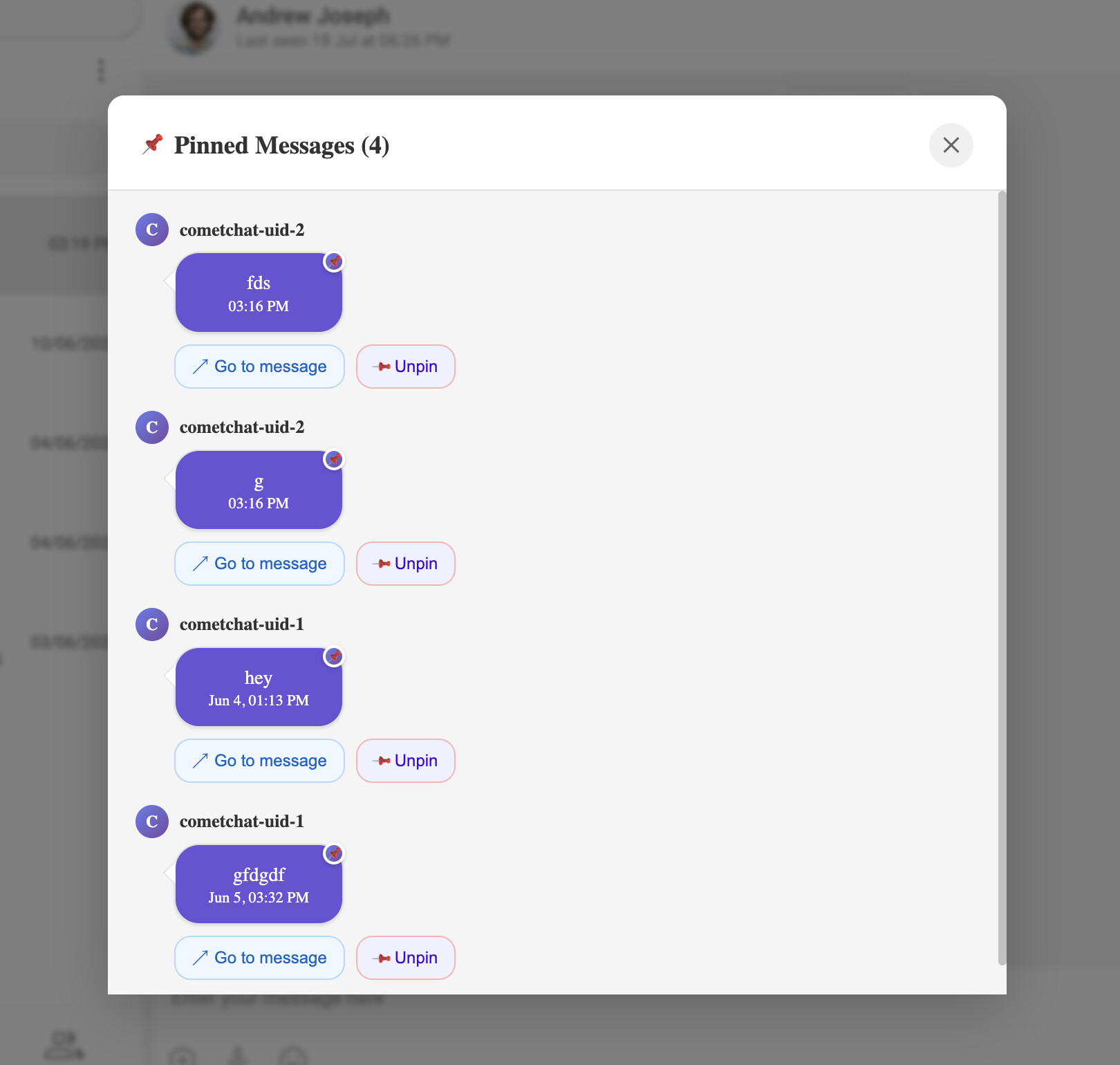
Once you’ve added the icon to your chat header, the next step is to display all pinned messages in a dedicated overlay or panel when the icon is clicked.
Create the PinnedMessagesView component
This component will render when showPinnedView is true, and show all pinned messages fetched from the extension:
const PinnedMessagesView = () => {
  if (!showPinnedView) return null;

  const getUserInitials = (name: any) => {
    if (!name) return '?';
    return name.split(' ').map((n: any) => n[0]).join('').toUpperCase().slice(0, 2);
  };
  const isOwnMessage = (message: any) => {
    return message.sender === 'You' || message.senderId === '';
  };
  const formatTime = (timestamp: any) => {
    if (!timestamp) return 'Unknown time';
    const date = new Date(timestamp * 1000);
    const now = new Date();
    const isToday = date.toDateString() === now.toDateString();
    return isToday
      ? date.toLocaleTimeString([], { hour: '2-digit', minute: '2-digit' })
      : date.toLocaleDateString([], { month: 'short', day: 'numeric', hour: '2-digit', minute: '2-digit' });
  };
  return (
    <div className="pinned-messages-overlay">
      <div className="pinned-messages-container">
        <div className="pinned-messages-header">
          <h3>Pinned Messages ({pinnedMessages.length})</h3>
          <buttonclassName="close-pinned-btn"
            onClick={() => setShowPinnedView(false)}
            title="Close"
          >
            ✕
          </button>
        </div>
        <div className="pinned-messages-list">
          {pinnedMessages.length === 0 ? (
            <div className="no-pinned-messages">
              <p>No pinned messages found</p>
            </div>
          ) : (
            pinnedMessages.map((pinnedMsg, index) => {
              const isOwn = isOwnMessage(pinnedMsg);
              const senderName = pinnedMsg.sender || 'Unknown User';

              return (
                <divkey={pinnedMsg.id || index}
                  className={`pinned-message-item ${isOwn ? 'own-message' : ''}`}
                >
                  <div className="pinned-message-header">
                    <div className="pinned-message-sender-info">
                      <div className="pinned-message-avatar">
                        {getUserInitials(senderName)}
                      </div>
                      <div className="pinned-message-sender">
                        {senderName}
                      </div>
                    </div>
                  </div>

                  <div className="pinned-message-bubble">
                    <div className="pin-indicator"></div>
                    <div className="pinned-message-text">
                      {pinnedMsg.data?.text || pinnedMsg.message || 'Message content unavailable'}
                    </div>
                    <div className="pinned-message-time">
                      {formatTime(pinnedMsg.sentAt)}
                    </div>
                    {isOwn && <div className="message-status read"></div>}
                  </div>

                  <div className="pinned-message-actions">
                    <buttonclassName="goto-message-btn"
                      onClick={() => {
                        setMessageId(pinnedMsg.id);
                        setShowPinnedView(false);
                      }}
                      title="Go to message"
                    >
                      Go to message
                    </button>

                    <buttonclassName="unpin-message-btn"
                      onClick={async () => {
                        const receiverInfo = getReceiverInfo();
                        if (!receiverInfo) return;

                        const { receiverType, receiver } = receiverInfo;
                        try {
                          await CometChat.callExtension("pin-message", "DELETE", "v1/unpin", {
                            msgId: pinnedMsg.id,
                            receiverType,
                            receiver,
                          });
                          await fetchPinnedMessages();
                        } catch (error) {
                          console.error("Error unpinning message", error);
                        }
                      }}
                      title="Unpin message"
                    >
                      Unpin
                    </button>
                  </div>
                </div>
              );
            })
          )}
        </div>
      </div>
    </div>
  );
};
10. Render the PinnedMessagesView
Add the component inside your layout .
 <>
 <PinnedMessagesView />
 </>
That’s it! You’ve now created a seamless UI to display pinned messages in your CometChat-powered React chat interface.
Navigating to a Pinned Message
To allow users to navigate directly to a pinned message, you’ll need to use the goToMessageId prop provided by CometChatMessageList.
Step 1: Create a state variable to store the message ID you want to jump to:
const [messageId, setMessageId] = useState<Number>();
Step 2: Update your <CometChatMessageList /> component to include the goToMessageId prop:
<CometChatMessageList
  key={showPinnedView ? "true" : "false"}
  goToMessageId={messageId?.toString()}
/>
The key ensures the component re-renders correctly when toggling between pinned view and regular view.
Step 3: In your PinnedMessagesView, when a user clicks Go to message, set the message ID and close the pinned view:
onClick={() => {
  setMessageId(pinnedMsg.id);
  setShowPinnedView(false);
}}
Once this is done, the chat screen will automatically scroll and highlight the pinned message when a user selects Go to message.
Once you’ve implemented the custom UI for pinned messages, you’ll also need to apply custom CSS styles to ensure the component appears polished and user-friendly.
Now that all steps have been completed, you can review the final integrated code below. This complete implementation brings together fetching, displaying, navigating, and unpinning pinned messages in your app. Go through the following code to ensure everything is connected seamlessly and working as expected.
import {
  CometChatActionsIcon,
  CometChatMessageComposer,
  CometChatMessageHeader,
  CometChatMessageList,
  CometChatMessageTemplate,
  CometChatTextHighlightFormatter,
  CometChatUIKit,
  CometChatUIKitConstants,
  getLocalizedString,
} from "@cometchat/chat-uikit-react";
import "../../styles/CometChatMessages/CometChatMessages.css";
import { useCallback, useEffect, useState } from "react";
import { CometChat } from "@cometchat/chat-sdk-javascript";
import { CometChatUserEvents } from "@cometchat/chat-uikit-react";
import { template } from "@babel/core";
import "./pinMessage.css";
interface MessagesViewProps {
  user?: CometChat.User;
  group?: CometChat.Group;
  onHeaderClicked: () => void;
  onThreadRepliesClick: (message: CometChat.BaseMessage) => void;
  onSearchClicked?: () => void;
  showComposer?: boolean;
  onBack?: () => void;
  goToMessageId?: string;
  searchKeyword?: string;
}
let limit = 30;
let messagesRequest = new CometChat.MessagesRequestBuilder().setLimit(limit);
export const CometChatMessages = (props: MessagesViewProps) => {
  const [pinnedMessages, setPinnedMessages] = useState<any[]>([]);
  const [showPinnedView, setShowPinnedView] = useState<boolean>(false);
  const {
    user,
    group,
    onHeaderClicked,
    onThreadRepliesClick,
    showComposer,
    onBack = () => {},
    onSearchClicked = () => {},
    goToMessageId,
    searchKeyword,
  } = props;
  const [showComposerState, setShowComposerState] = useState<
    boolean | undefined
  >(showComposer);
  const [isMobile, setIsMobile] = useState(window.innerWidth < 768);
  const [templates, setTemplates] = useState<CometChatMessageTemplate[]>([]);
  const [messageId, setMessageId] = useState<Number>();
  const PinnedMessagesView = () => {
    if (!showPinnedView) return null;
    const getUserInitials = (name: any) => {
      if (!name) return "?";
      return name
        .split(" ")
        .map((n: any) => n[0])
        .join("")
        .toUpperCase()
        .slice(0, 2);
    };
    const isOwnMessage = (message: any) => {
      return message.sender === "You" || message.senderId === "";
    };
    const formatTime = (timestamp: any) => {
      if (!timestamp) return "Unknown time";
      const date = new Date(timestamp * 1000);
      const now = new Date();
      const isToday = date.toDateString() === now.toDateString();

      if (isToday) {
        return date.toLocaleTimeString([], {
          hour: "2-digit",
          minute: "2-digit",
        });
      } else {
        return date.toLocaleDateString([], {
          month: "short",
          day: "numeric",
          hour: "2-digit",
          minute: "2-digit",
        });
      }
    };
    console.log("Pinned messages: ", pinnedMessages);
    return (
      <div className="pinned-messages-overlay">
        <div className="pinned-messages-container">
          <div className="pinned-messages-header">
            <h3>Pinned Messages ({pinnedMessages.length})</h3>
            <button
              className="close-pinned-btn"
              onClick={() => setShowPinnedView(false)}
              title="Close"
            >
              ✕
            </button>
          </div>
          <div className="pinned-messages-list">
            {pinnedMessages.length === 0 ? (
              <div className="no-pinned-messages">
                <p>No pinned messages found</p>
              </div>
            ) : (
              pinnedMessages.map((pinnedMsg, index) => {
                const isOwn = isOwnMessage(pinnedMsg);
                const senderName = pinnedMsg.sender || "Unknown User";

                return (
                  <div
                    key={pinnedMsg.id || index}
                    className={`pinned-message-item ${
                      isOwn ? "own-message" : ""
                    }`}
                  >
                    <div className="pinned-message-header">
                      <div className="pinned-message-sender-info">
                        <div className="pinned-message-avatar">
                          {getUserInitials(senderName)}
                        </div>
                        <div className="pinned-message-sender">
                          {senderName}
                        </div>
                      </div>
                    </div>

                    <div className="pinned-message-bubble">
                      <div className="pin-indicator"></div>
                      <div className="pinned-message-text">
                        {pinnedMsg.data?.text ||
                          pinnedMsg.message ||
                          "Message content unavailable"}
                      </div>
                      <div className="pinned-message-time">
                        {formatTime(pinnedMsg.sentAt)}
                      </div>
                      {isOwn && <div className="message-status read"></div>}
                    </div>

                    <div className="pinned-message-actions">
                      <button
                        className="goto-message-btn"
                        onClick={() => {
                          setMessageId(pinnedMsg.id);
                          setShowPinnedView(false);
                        }}
                        title="Go to message"
                      >
                        Go to message
                      </button>

                      <button
                        className="unpin-message-btn"
                        onClick={async () => {
                          const receiverInfo = getReceiverInfo();
                          if (!receiverInfo) return;

                          const { receiverType, receiver } = receiverInfo;
                          try {
                            await CometChat.callExtension(
                              "pin-message",
                              "DELETE",
                              "v1/unpin",
                              {
                                msgId: pinnedMsg.id,
                                receiverType: receiverType,
                                receiver: receiver,
                              }
                            );
                            await fetchPinnedMessages();
                          } catch (error) {
                            console.error("Error unpinning message", error);
                          }
                        }}
                        title="Unpin message"
                      >
                        Unpin
                      </button>
                    </div>
                  </div>
                );
              })
            )}
          </div>
        </div>
      </div>
    );
  };

  const getReceiverInfo = useCallback(() => {
    let receiverType: string;
    let receiver: string;

    if (user) {
      receiverType = "user";
      receiver = user.getUid();
    } else if (group) {
      receiverType = "group";
      receiver = group.getGuid();
    } else {
      return null;
    }

    return { receiverType, receiver };
  }, [user, group]);
  const fetchPinnedMessages = useCallback(async () => {
    const receiverInfo = getReceiverInfo();
    if (!receiverInfo) return;

    const { receiverType, receiver } = receiverInfo;
    const URL = `v1/fetch?receiverType=${receiverType}&receiver=${receiver}`;

    try {
      const response: any = await CometChat.callExtension(
        "pin-message",
        "GET",
        URL
      );
      if (response?.pinnedMessages) {
        setPinnedMessages(response.pinnedMessages);
      }
    } catch (error) {
      console.error("Error fetching pinned messages", error);
    }
  }, [getReceiverInfo]);

  const getCustomOptions = useCallback(
    (
      loggedInUser: CometChat.User,
      message: CometChat.BaseMessage,
      group?: CometChat.Group
    ) => {
      const defaultOptions = CometChatUIKit.getDataSource().getMessageOptions(
        loggedInUser,
        message,
        group
      );

      const isPinned = pinnedMessages?.some(
        (pinmsg: any) => pinmsg.id == message.getId()
      );
      const receiverInfo = getReceiverInfo();

      if (!receiverInfo) return defaultOptions;

      const { receiverType, receiver } = receiverInfo;

      console.log("Pinned or not", isPinned);

      const pinUnpinOption = new CometChatActionsIcon({
        id: isPinned ? "unpin" : "pin",
        title: isPinned ? "Unpin" : "Pin",
        iconURL: "", // Optional icon
        onClick: async () => {
          try {
            if (isPinned) {
              // Unpin message
              await CometChat.callExtension(
                "pin-message",
                "DELETE",
                "v1/unpin",
                {
                  msgId: message.getId(),
                  receiverType: receiverType,
                  receiver: receiver,
                }
              );
              console.log("Message unpinned");
            } else {
              // Pin message
              await CometChat.callExtension("pin-message", "POST", "v1/pin", {
                msgId: message.getId(),
                receiverType: receiverType,
                receiver: receiver,
              });
              console.log("Message pinned");
            }

            // Refresh pinned messages after pin/unpin operation
            await fetchPinnedMessages();
          } catch (error) {
            console.error("Error in pin/unpin operation", error);
          }
        },
      });

      defaultOptions.splice(1, 0, pinUnpinOption);
      return defaultOptions;
    },
    [pinnedMessages, getReceiverInfo, fetchPinnedMessages]
  );

  const [chatGroup, setChatGroup] = useState<CometChat.Group>();
  useEffect(() => {
    console.log("📋 Adding paste event listener");
    window.addEventListener("paste", handlePaste);
    return () => {
      window.removeEventListener("paste", handlePaste);
    };
  });
  useEffect(() => {
    fetchPinnedMessages();
  }, [fetchPinnedMessages]);

  const handlePaste = (e: any) => {
    const items = e.clipboardData?.items;
    console.log("📋 Paste event detected:", items);
    if (items) {
      for (const item of items) {
        if (item.type.indexOf("image") !== -1) {
          const file = item.getAsFile();

          if (file) {
            console.log("📋 Pasted image:", file);
            const messageType = CometChat.MESSAGE_TYPE.FILE; // or FILE if it's non-image
            const receiverType = CometChat.RECEIVER_TYPE.USER;

            console.log(
              "📋 Sending media message:",
              file,
              messageType,
              receiverType
            );
            const mediaMessage = new CometChat.MediaMessage(
              "uid1",
              file, // ✅ Directly pass the File object
              messageType,
              receiverType
            );
            CometChatUIKit.sendMediaMessage(mediaMessage).then(
              (message) => {
                console.log("✅ Image/file message sent:", message);
              },
              (error) => {
                console.error("❌ Failed to send media message:", error);
              }
            );
          }
        }
      }
    }
  };
  useEffect(() => {
    const definedTemplates =
      CometChatUIKit.getDataSource().getAllMessageTemplates();

    const updatedTemplates = definedTemplates.map((template) => {
      template.options = getCustomOptions;
      return template;
    });

    setTemplates(updatedTemplates);
  }, [getCustomOptions]);

  const pinMessageHeader = () => (
    <div className="pinned-messages-indicator">
      <button
        className="view-pinned-btn"
        onClick={() => setShowPinnedView(true)}
      >
        📌
      </button>
    </div>
  );
  useEffect(() => {
    setShowComposerState(showComposer);
    if (user?.getBlockedByMe?.()) {
      setShowComposerState(false);
    }
  }, [user, showComposer]);

  useEffect(() => {
    const handleResize = () => {
      setIsMobile(window.innerWidth < 768);
    };

    window.addEventListener("resize", handleResize);
    return () => window.removeEventListener("resize", handleResize);
  }, []);

  function getFormatters() {
    let formatters = CometChatUIKit.getDataSource().getAllTextFormatters({});

    if (searchKeyword) {
      formatters.push(new CometChatTextHighlightFormatter(searchKeyword));
    }
    return formatters;
  }

  return (
    <div className="cometchat-messages-wrapper">
      <div className="cometchat-header-wrapper">
        <CometChatMessageHeader
          user={user}
          group={group}
          onBack={onBack}
          showBackButton={isMobile}
          showSearchOption={true}
          onSearchOptionClicked={onSearchClicked}
          onItemClick={onHeaderClicked}
          auxiliaryButtonView={pinMessageHeader()}
        />
      </div>
      <>
        <PinnedMessagesView />
      </>
      <div className="cometchat-message-list-wrapper">
        <CometChatMessageList
          key={showPinnedView ? "true" : "false"}
          disableSoundForMessages={false}
          user={user}
          templates={templates}
          group={group}
          onThreadRepliesClick={(message: CometChat.BaseMessage) =>
            onThreadRepliesClick(message)
          }
          goToMessageId={messageId?.toString()}
          textFormatters={
            searchKeyword && searchKeyword.trim() !== ""
              ? getFormatters()
              : undefined
          }
        />
      </div>
      {showComposerState ? (
        <div className="cometchat-composer-wrapper">
          <CometChatMessageComposer
            disableSoundForMessage={true}
            user={user}
            group={group}
          />
        </div>
      ) : (
        <div
          className="message-composer-blocked"
          onClick={() => {
            if (user) {
              CometChat.unblockUsers([user?.getUid()]).then(() => {
                user.setBlockedByMe(false);
                CometChatUserEvents.ccUserUnblocked.next(user);
              });
            }
          }}
        >
          <div className="message-composer-blocked__text">
            {getLocalizedString("cannot_send_to_blocked_user")}{" "}
            <a> {getLocalizedString("click_to_unblock")}</a>
          </div>
        </div>
      )}
    </div>
  );
};
Output: